


How to Deactivate Instagram Account :: In this comprehensive guide, we will walk you through the process of temporarily deactivating your Instagram account. Whether you need a break from the social media platform or want to safeguard your privacy, temporarily deactivating your Instagram account can be a viable solution. We will provide you with step-by-step instructions and valuable insights to help you successfully deactivate your account. So, let’s get started!
Why Should You Temporarily Deactivate Your Instagram Account?
There could be several reasons why you might consider temporarily deactivating your Instagram account. Here are a few common ones:
1. Social Media Detox: Taking a break from social media can be beneficial for your mental well-being. Temporarily deactivating your Instagram account allows you to focus on other aspects of your life and reconnect with the offline world.
2. Privacy Concerns: If you feel that your privacy is compromised or want to limit your digital footprint, deactivating your Instagram account temporarily can help safeguard your personal information.
3. Examining Social Media Usage: Taking a step back from Instagram can provide you with an opportunity to reflect on your social media habits, assess the time you spend on the platform, and make more informed decisions about your online presence.
Step-by-Step Guide to Temporarily Deactivate Your Instagram Account
Follow these simple steps to temporarily deactivate your Instagram account:
Step 1: Log into Your Instagram Account
Start by logging into your Instagram account using the Instagram mobile app or through the website.
Step 2: Go to Your Profile
Once you’re logged in, navigate to your profile page by tapping on the profile icon located at the bottom left corner of the screen.
Step 3: Access the Settings
In the bottom left corner of your profile page, you’ll find a gear icon. Tap on it to access the “More” menu.

Step 4: Select “Privacy and Security”
Scroll down the “Settings” menu and select “Privacy and Security.”
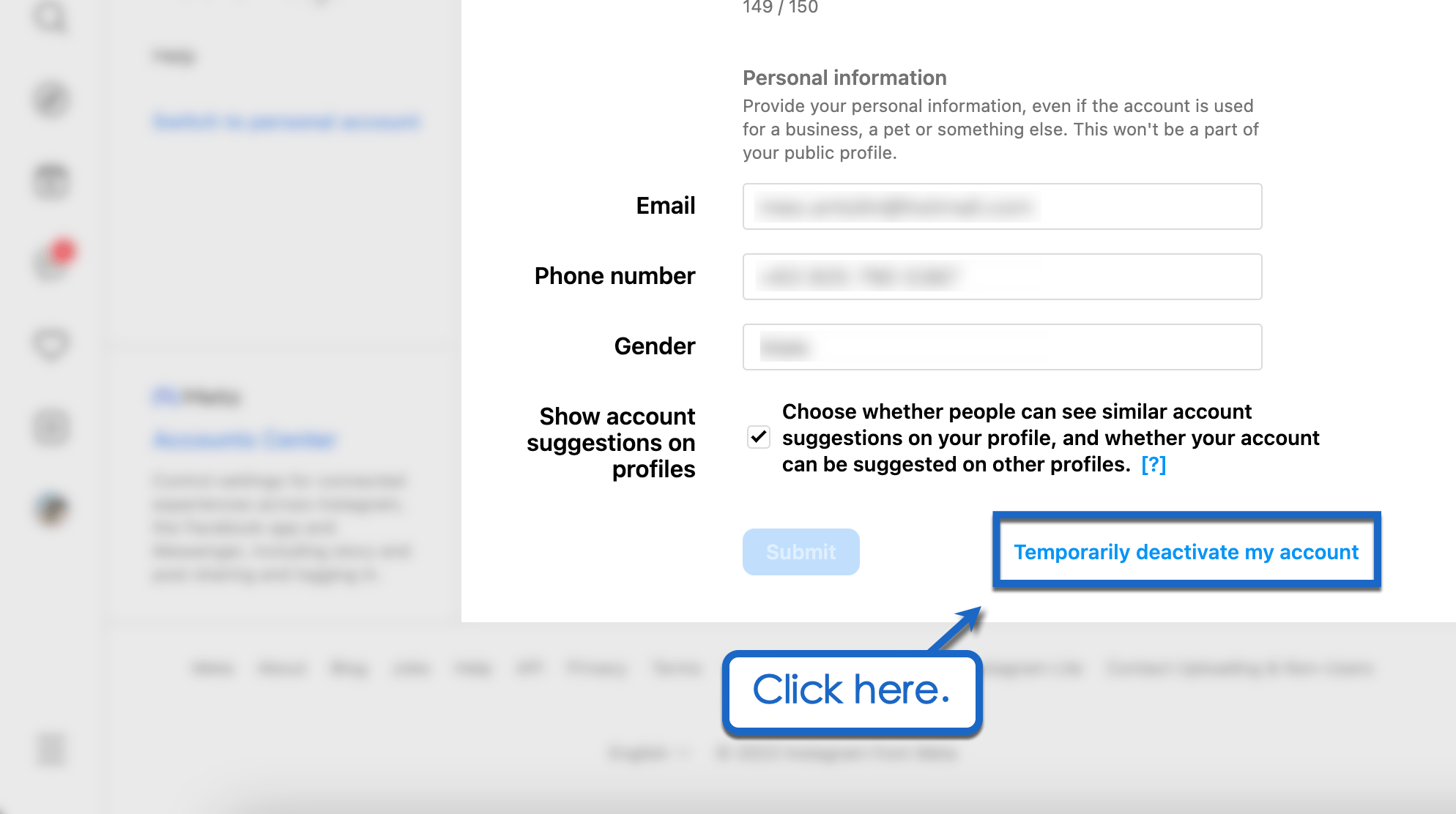
Step 5: Choose “Temporarily Disable Account”
Within the “Privacy and Security” section, look for the “Account” options. Select “Temporarily Disable Account” from the list.
Step 6: Provide a Reason and Enter Your Password
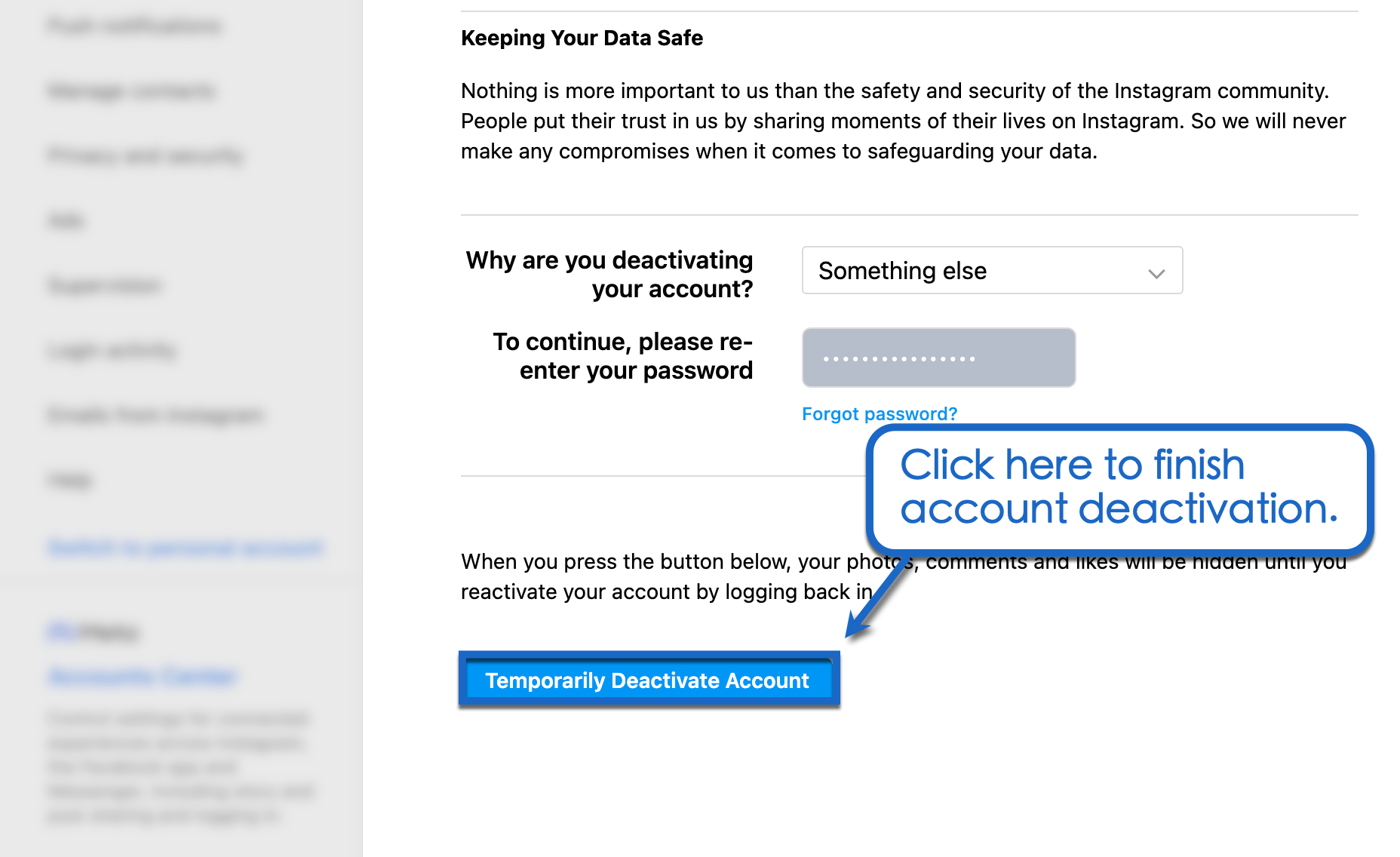
Instagram will prompt you to select a reason for deactivating your account. Choose the appropriate reason from the drop-down menu. Then, enter your account password when prompted.
Step 7: Temporarily Deactivate Your Account
After entering your password, tap on the “Temporarily Disable Account” button to proceed with deactivating your Instagram account. Your account will now be deactivated until you decide to reactivate it.
Reactivating Your Instagram Account
When you’re ready to reactivate your Instagram account, follow these steps:
1. Open the Instagram app or visit the website.
2. Log in using your account credentials.
3. Your account will be reactivated, and you can resume using Instagram as before.
Read More : Instagram Delete My Account: A Comprehensive Guide to Account Deletion
Conclusion
Temporarily deactivating your Instagram account can be a strategic decision to prioritize your well-being or protect your privacy. By following the step-by-step guide we’ve provided, you can easily deactivate and reactivate your account whenever you need.
Remember, taking breaks from social media can be refreshing and help you maintain a healthy relationship with the digital world. So, go ahead and give yourself the freedom to disconnect temporarily from Instagram.




