

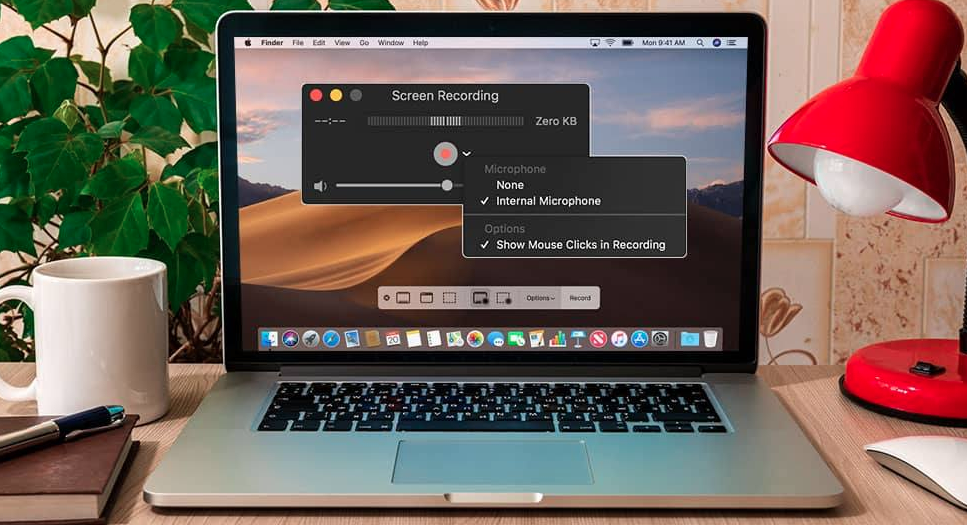
How to Screen Record on Mac :: Welcome to our comprehensive guide on how to screen record on your MacBook. In this article, we will provide you with step-by-step instructions, tips, and tricks to help you effortlessly capture your screen and create high-quality recordings. Whether you need to record a tutorial, showcase a software demonstration, or save a memorable moment, we’ve got you covered. Let’s dive in!
1. Understanding the Importance of Screen Recording
Screen recording has become an essential tool in various fields, including education, software development, marketing, and content creation. By capturing your MacBook screen, you can effectively communicate ideas, demonstrate processes, and provide visual aids to your audience. Whether you are a teacher, a business professional, or a creative individual, mastering the art of screen recording can significantly enhance your productivity and presentation skills.
2. Preparing Your MacBook for Screen Recording
Before you start screen recording, it’s essential to ensure that your MacBook is properly set up. Follow these steps to prepare your device:
- Make sure your MacBook is updated to the latest version of macOS.
- Close unnecessary applications and processes to optimize performance.
- Clear up storage space on your device to accommodate your recordings.
- Connect your MacBook to a stable power source or have sufficient battery charge.
3. Built-in Screen Recording Tools on macOS
Fortunately, macOS offers built-in screen recording tools that provide a convenient way to capture your screen without the need for third-party software. To initiate a screen recording using the built-in tools, follow these simple steps:
- Press “Command + Shift + 5” to open the screenshot toolbar.
- Choose whether to record the entire screen or a selected portion.
- Select the desired audio input source (system audio, microphone, or both).
- Click on the “Record” button to start the screen recording.
- To stop the recording, click on the stop button in the menu bar or press “Command + Control + Esc.”
4. Recommended Third-Party Screen Recording Software
While the built-in tools are suitable for basic screen recording, you may require additional features and flexibility for more advanced recording projects. Here are some highly recommended third-party screen recording software options for your MacBook:
- ScreenFlow: A powerful and user-friendly screen recording and video editing tool.
- Camtasia: Offers a comprehensive suite of screen recording and video editing features.
- Snagit: Perfect for quick and straightforward screen captures and basic recordings.
- OBS Studio: An open-source software that provides advanced recording and streaming capabilities.
5. Adjusting Screen Recording Settings
To optimize your screen recordings and ensure the best possible quality, it’s crucial to adjust the screen recording settings according to your requirements. Consider the following settings:
- Resolution: Choose the appropriate resolution for your recordings based on your audience and platform.
- Frame Rate: Higher frame rates (e.g., 60fps) result in smoother recordings but require more processing power and storage.
- Audio Source: Select the correct audio source to capture system audio
, external audio, or both.
- Mouse Clicks: Determine whether to display or hide mouse clicks during the recording.
- Keyboard Shortcuts: Customize keyboard shortcuts for starting, pausing, and stopping recordings.
6. Recording Your MacBook Screen
Now that you have prepared your MacBook and adjusted the necessary settings let’s dive into the screen recording process. Follow these steps to record your MacBook screen effectively:
- Launch your preferred screen recording software or utilize the built-in macOS tools.
- Set up the recording parameters, including the area of the screen to capture and audio sources.
- Start the recording by clicking the “Record” button or using the designated keyboard shortcut.
- Perform the actions you want to capture on your screen, whether it’s demonstrating a process or showcasing specific features.
- When you are finished recording, stop the recording using the software controls or the appropriate keyboard shortcut.
7. Enhancing Your Screen Recordings
To create professional and engaging screen recordings, consider implementing the following enhancements:
- Annotations: Use tools provided by your screen recording software to add text, shapes, and highlights to emphasize important points.
- Mouse Emphasis: Enable mouse spotlight or click animations to draw attention to cursor movements and clicks.
- Voiceover and Narration: Record your voice to provide explanations, instructions, or commentary during the recording.
- Video Editing: Utilize video editing software to trim, merge, or enhance your screen recordings further.
- Transitions and Effects: Add transitions, visual effects, and overlays to create a polished final product.
8. Saving and Sharing Your Screen Recordings
Once you have completed your screen recordings, it’s time to save and share them with your desired audience. Follow these steps to ensure seamless distribution:
- Export your screen recordings to a suitable video format (e.g., MP4, MOV).
- Choose an appropriate video resolution and file size based on your distribution platform and audience preferences.
- Consider compressing your video files to reduce their size without compromising quality.
- Upload your screen recordings to popular video hosting platforms like YouTube, Vimeo, or Wistia.
- Embed the video in relevant blog posts, social media platforms, or websites to reach your target audience effectively.
9. Troubleshooting Screen Recording Issues
If you encounter any issues during the screen recording process, try the following troubleshooting steps:
- Restart your MacBook and relaunch the screen recording software.
- Update your screen recording software to the latest version.
- Check your microphone and audio settings to ensure proper recording.
- Disable unnecessary background applications to optimize system resources.
- Consult online forums, support communities, or the software documentation for specific error messages or issues.
Read More : Where are Screenshots Saved on Mac?
Conclusion
In conclusion, screen recording on your MacBook is a valuable skill that can enhance your productivity and enable effective communication. By following the steps outlined in this comprehensive guide, you are well-equipped to create high-quality screen recordings that will engage and educate your audience. Remember to choose the appropriate software, adjust the necessary settings, and explore additional enhancements to take your screen recordings to the next level. Start capturing your MacBook screen today and unlock a world of possibilities!




