


How to Copy on Macbook :: Welcome to our comprehensive guide on how to copy and paste on a Mac! At our website, we understand the importance of mastering essential computer skills to enhance your productivity.
In this guide, we will walk you through the step-by-step process of copying and pasting on a Mac, providing you with valuable tips and tricks along the way. Whether you’re a beginner or an experienced Mac user, this article will help you become a pro at copying and pasting in no time.
1. Understanding the Basics of Copying and Pasting
Copying and pasting is a fundamental function that allows you to duplicate content from one location and place it elsewhere. This process is incredibly useful for a wide range of tasks, such as transferring text, images, files, or folders between documents, applications, or even different parts within the same document.
2. Copying Text on a Mac
Using Keyboard Shortcuts
Mac provides intuitive keyboard shortcuts to streamline your copying process. Follow these steps:
1. Select the text you wish to copy by clicking and dragging your cursor over the desired content.
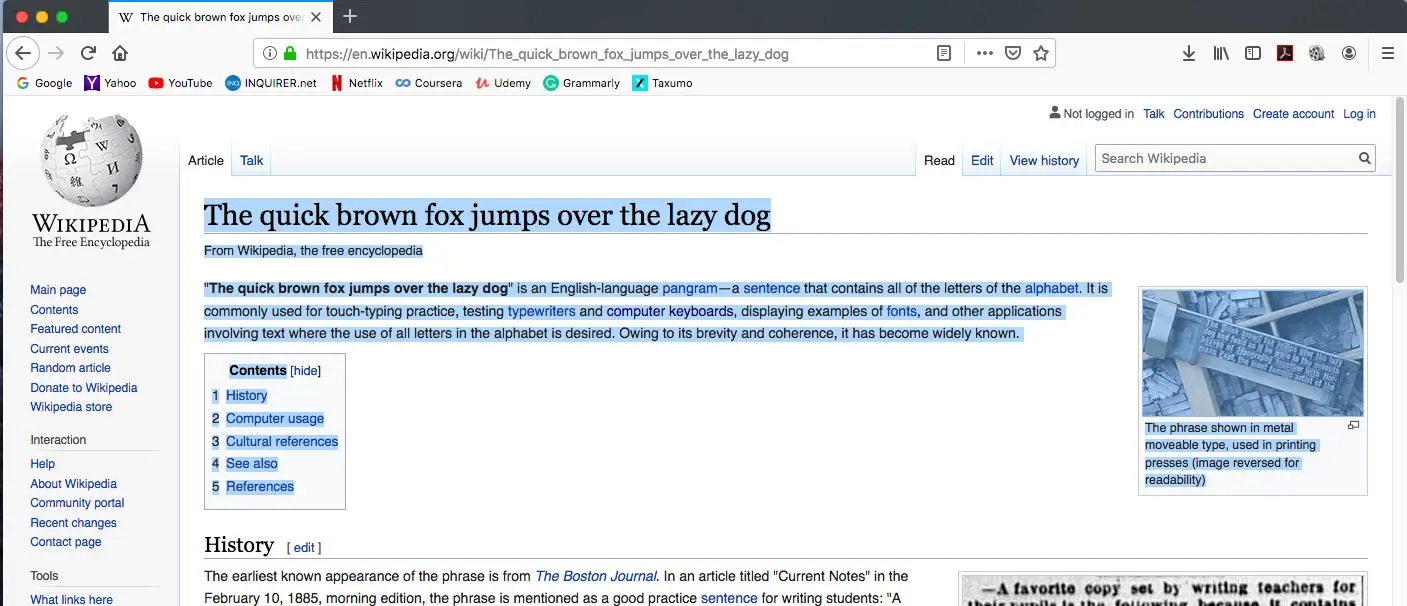
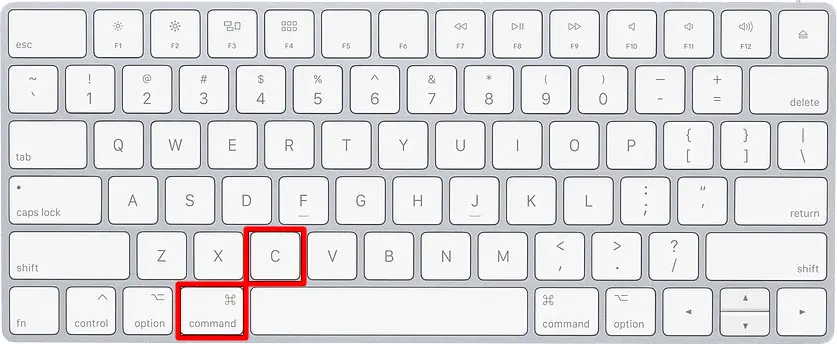
2. Once the text is selected, press the Command (⌘) key and the C key simultaneously.
Utilizing the Contextual Menu
Another way to copy text on a Mac is by utilizing the contextual menu. Here’s how:
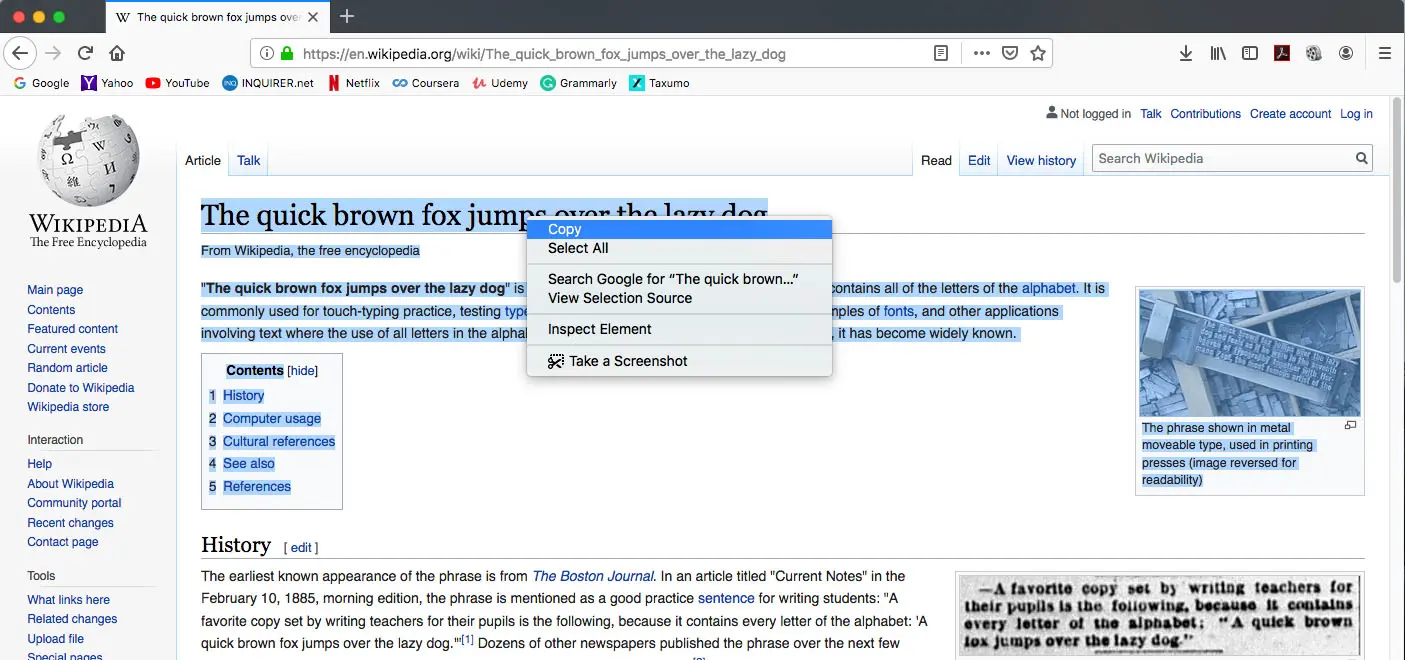
1. Right-click (or Control-click) on the selected text.
2. From the menu that appears, click on the Copy option.
Copying Rich Text and Images
If you need to copy rich text formatting or images, Mac provides additional options:
1. For copying rich text formatting, such as fonts, styles, and colors, use the Edit menu within most applications. Look for the Copy Style or Copy Format option.
2. To copy images, select the desired image, right-click on it, and choose the Copy Image option from the menu.
3. Pasting Text on a Mac
Using Keyboard Shortcuts
Once you have copied the desired content, it’s time to paste it somewhere else. Follow these simple steps:
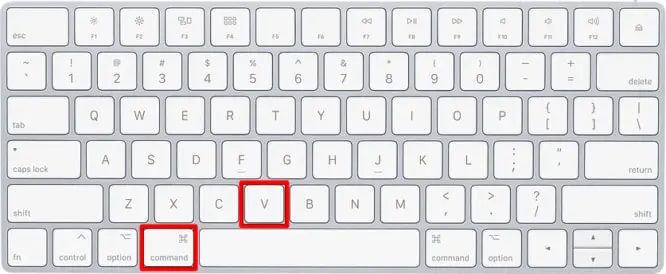
1. Position your cursor where you want to paste the copied content.
2. Press the Command (⌘) key and the V key simultaneously.
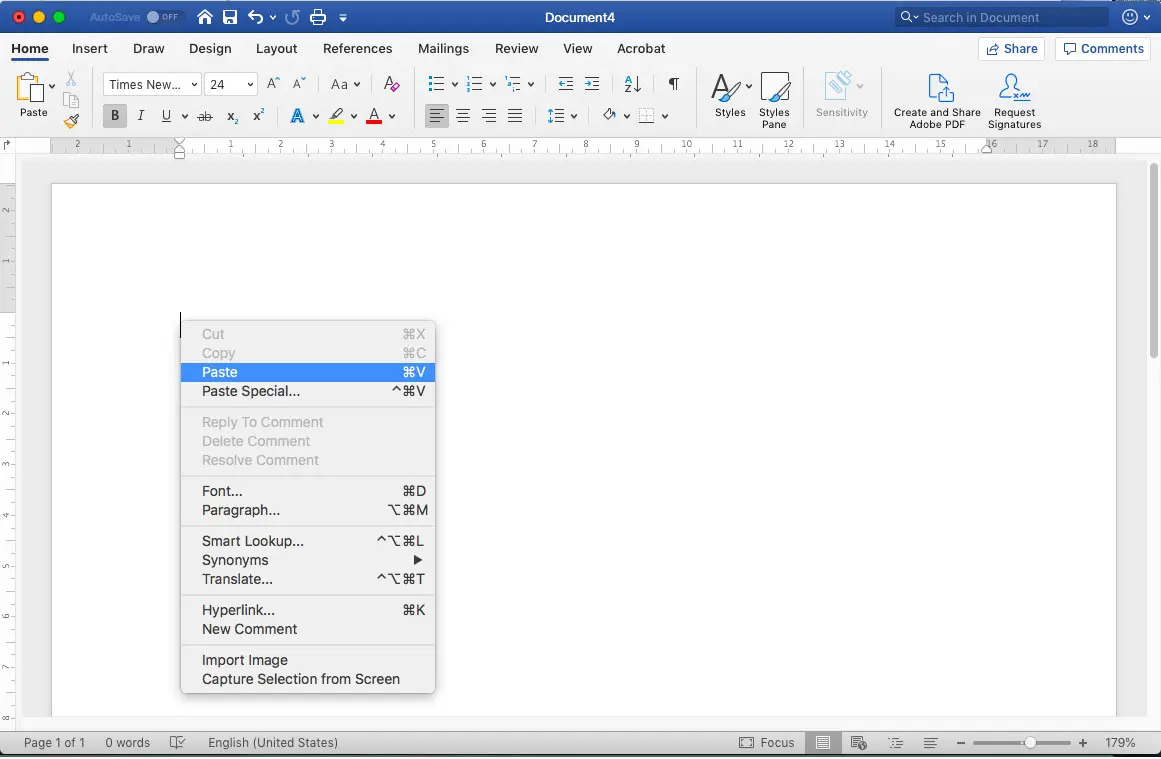
Using the Contextual Menu
Mac also offers a contextual menu option for pasting your copied content:
1. Right-click (or Control-click) where you want to paste the content.
2. From the menu that appears, click on the Paste option.
Pasting Rich Text and Images
To paste rich text formatting or images, you can use the following methods:
1. For pasting rich text formatting, use the Edit menu within most applications. Look for the Paste Style or Paste Format option.
2. To paste an image, position your cursor where you want to insert it, right-click, and select the Paste Image option.
4. Advanced Copy and Paste Techniques
Copying and Pasting Across Applications
Mac allows you to copy content from one application and paste it into another. This seamless integration across applications makes your workflow more efficient. Follow these steps:
1. Copy the content using one of the methods mentioned above.
2. Switch to the application where you want to paste the content.
3. Position your cursor and use the appropriate keyboard shortcut or contextual menu option to paste the content.
Copying and Pasting Files and Folders
Copying and pasting files and folders on a Mac is slightly different from copying text. Here’s what you need to do:
1. Select the file or folder you want to copy by clicking on it once.
2. Go to the Edit menu and choose the Copy option.
3. Navigate to the destination location where you want to paste the file or folder.
4. Again, go to the Edit menu and select the Paste option.
5. Troubleshooting Copy and Paste Issues
In some cases, you may encounter issues with the copy and paste function on your Mac. If you face any challenges, consider the following troubleshooting steps:
1. Ensure that you have sufficient disk space available on your Mac.
2. Restart your computer, as this can resolve temporary glitches.
3. Update your Mac’s operating system and applications to the latest versions.
4. If the issue persists, consult Apple’s support resources or reach out to their customer support for further assistance.
Read More : How to Take a Screenshots on Macbook
6. Conclusion
Congratulations! You’ve now learned how to copy and paste on a Mac like a pro. These essential skills will undoubtedly boost your productivity and streamline your workflow. Whether you’re a student, professional, or casual user, mastering the art of copying and pasting will save you time and effort in your daily tasks.
Remember, practice makes perfect. The more you use these techniques, the more comfortable and efficient you’ll become. So go ahead and explore the incredible possibilities that copying and pasting offer on your Mac.
Thank you for choosing our comprehensive guide as your go-to resource for mastering the art of copying and pasting on a Mac. Happy copying and pasting!




